getting started
Set up your first campaign
Learn how to set up your first campaign with a safe Juniper & Trail example, shopper impact, options, and recovery checks. A first campaign should use a small manual product scope, a short reversible schedule, one discount route, and only the storefront components you can verify. Complete all six wizard steps before launch.
Before you begin
- A Shopify staff account allowed to open installed apps
- Access to the published theme when the guide changes storefront rendering
- A small, reversible product set for the first campaign
Keep the campaign in Draft while you verify the configuration. Use a private storefront window where the guide changes shopper-facing behavior.
Step-by-step setup
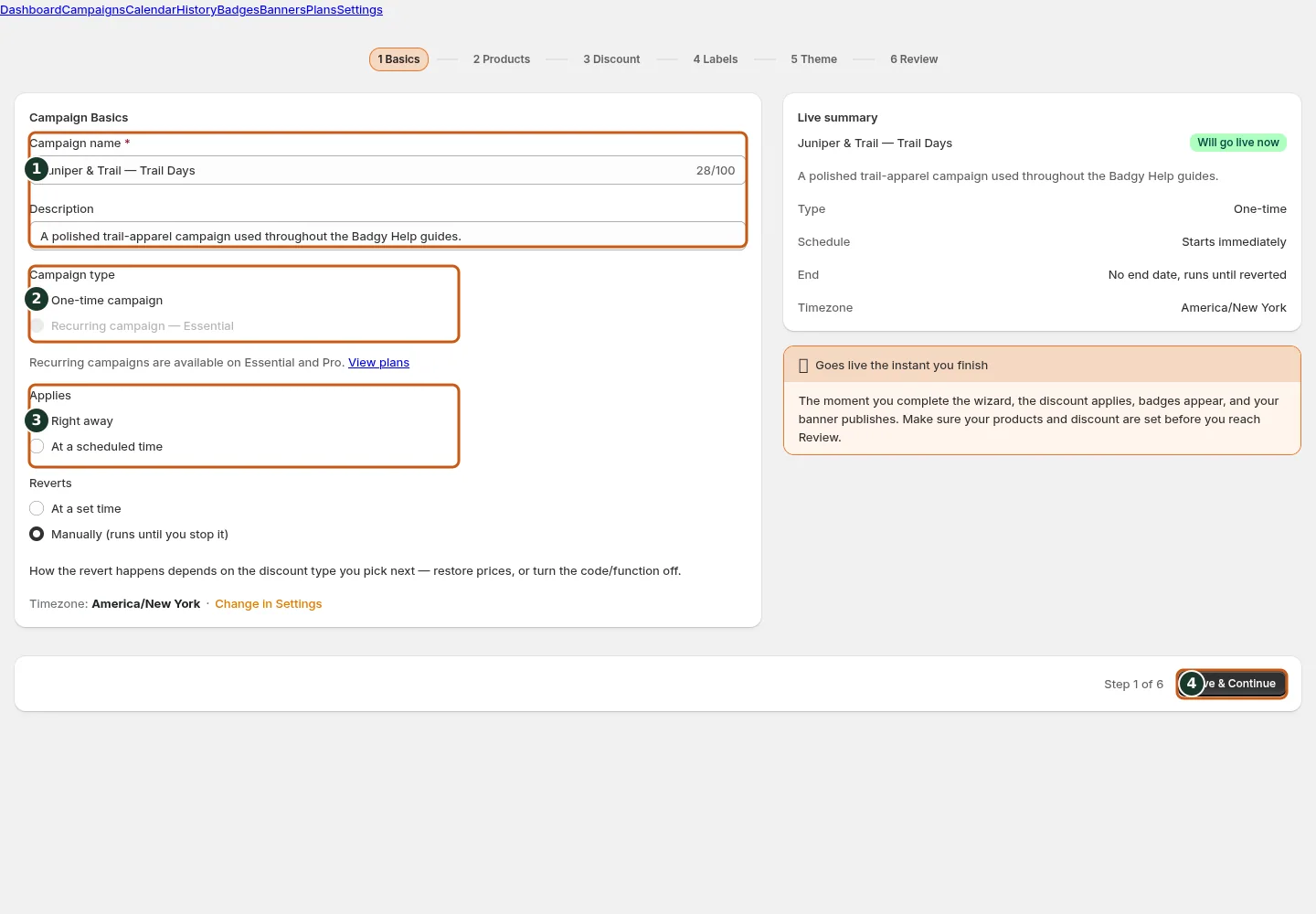
Name and describe the campaign so teammates can identify its purpose.
Choose whether the campaign runs once or repeats on a schedule.
Set when the campaign should begin.
Choose whether the campaign ends automatically or stays open.
Save the basics and continue to the next wizard step.
- Choose Create campaign and name a one-time draft Weekend Trail Kit.
- In Basics, choose Apply now and At a set time with a short safe window.
- Choose one discount route and manually select two Juniper & Trail products.
- Configure only the badge or banner you can verify, then complete Labels.
- In Review, inspect resolved products and previews, launch once, and monitor activation.
A first campaign should use a small manual product scope, a short reversible schedule, one discount route, and only the storefront components you can verify. Complete all six wizard steps before launch.
Juniper & Trail example
Juniper & Trail uses a controlled Weekend Trail Kit draft and the published theme's app embed. The team verifies the shop name before it previews set up your first campaign. The documentation fixture uses realistic products, inventory states, variants, collections, and protected exclusions so the preview exercises the same decisions as a merchant catalog.
What shoppers will see
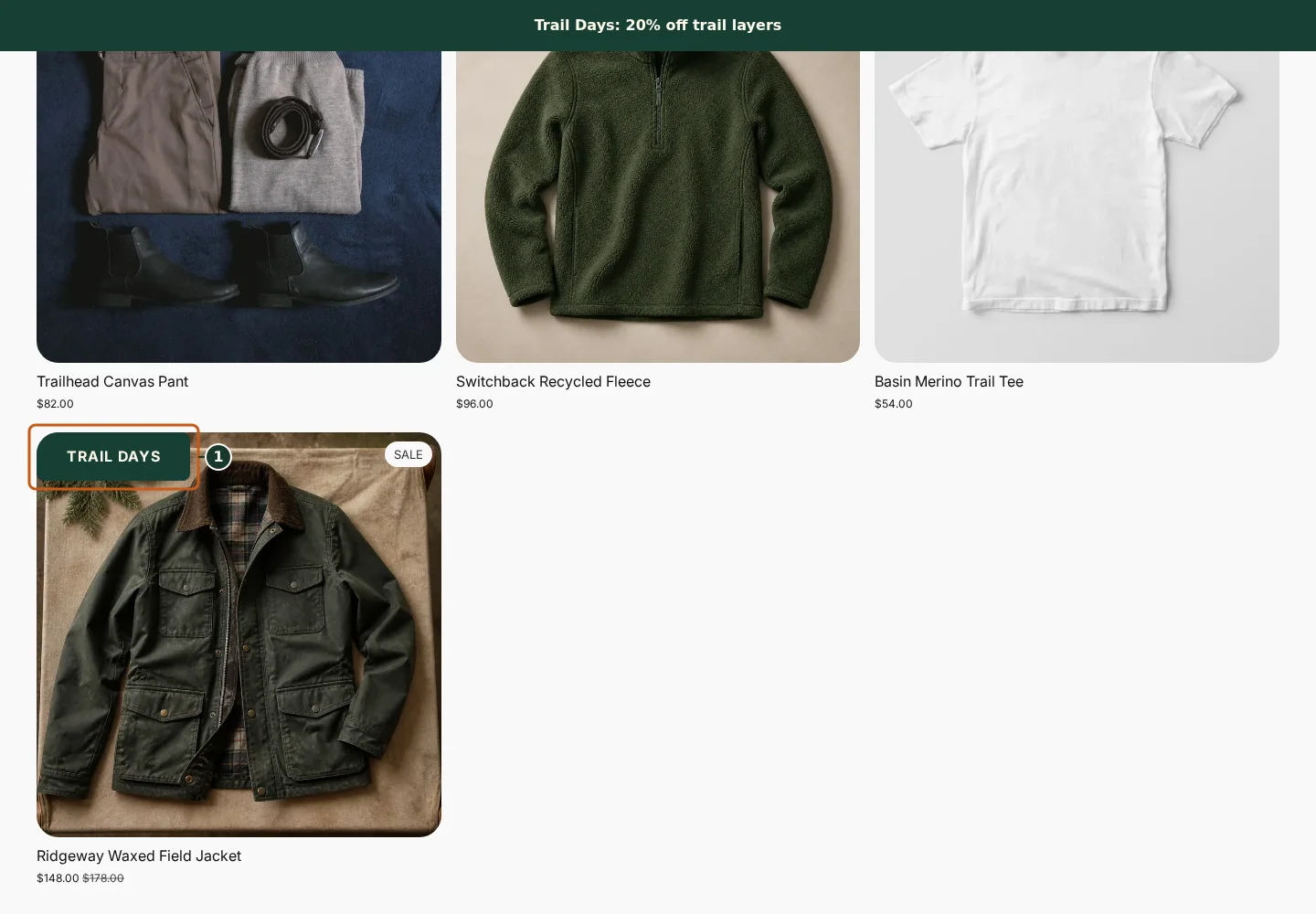
Confirm the campaign announcement and Shop call to action at the top of the store.
Check the badge and adjusted pricing on an eligible product card.
Compare another product card to verify consistent campaign treatment.
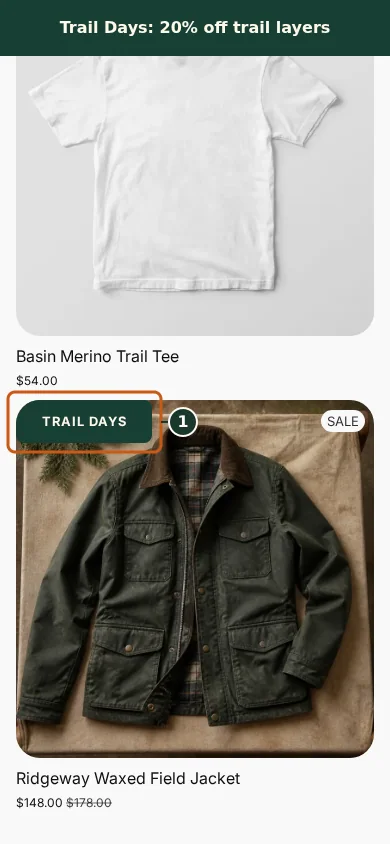
Confirm the campaign announcement and Shop call to action fit the mobile header.
Check that the badge remains readable on the mobile product card.
Scroll through additional products to verify the collection layout stays usable.
Nothing appears to shoppers until the campaign is active and the required theme rendering is enabled. Check the relevant result from product through cart where applicable. For shopper-facing work, compare desktop and mobile and verify both an eligible and an ineligible item.
Common mistakes and troubleshooting
- Acting on the wrong shop. Confirm the Shopify store and campaign before following Set up your first campaign.
- Trusting a stale preview. Refresh after catalog, schedule, discount, theme, locale, or market changes.
- Repeating a background command. Read status and History first; retry only when Badgy presents a recoverable failure.
- Skipping the consequence check. Confirm what changes for shoppers and what the end or restore path will do.
If the status reports revoked authorization, reconnect Shopify before retrying. If the result still differs from the preview, preserve the campaign ID and approximate time, then open support from this identified shop. Never send customer data, access tokens, or full catalog exports in feedback.
Related guides
Options reference
| Option | Use it when | Consequence | | --- | --- | --- | | Small manual scope | First live verification | Easy to spot-check and restore | | Short fixed window | Controlled first run | Automatic full end path | | Draft preview | Correct setup safely | No shopper impact | | Launch once | Start verified work | Monitor background phases |
Badgy behavior in this guide is reviewed against the repository's shipped UI, service rules, and feature design documents. Shopify-owned theme, Markets, Flow, billing, and discount behavior can also depend on the store's Shopify configuration; consult the Shopify Help Center for that platform configuration.