scheduling recurrence
Plan a recurring campaign
Learn how to plan a recurring campaign with a safe Juniper & Trail example, shopper impact, options, and recovery checks. Choose a continuous span or daily windows, a frequency, an interval, and a series end rule. Every occurrence still has a definite apply and revert boundary.
Before you begin
- Confirm the shop timezone and trading windows
- Decide span versus separate daily windows
- Choose how the series stops
Keep the campaign in Draft while you verify the configuration. Use a private storefront window where the guide changes shopper-facing behavior.
Step-by-step setup
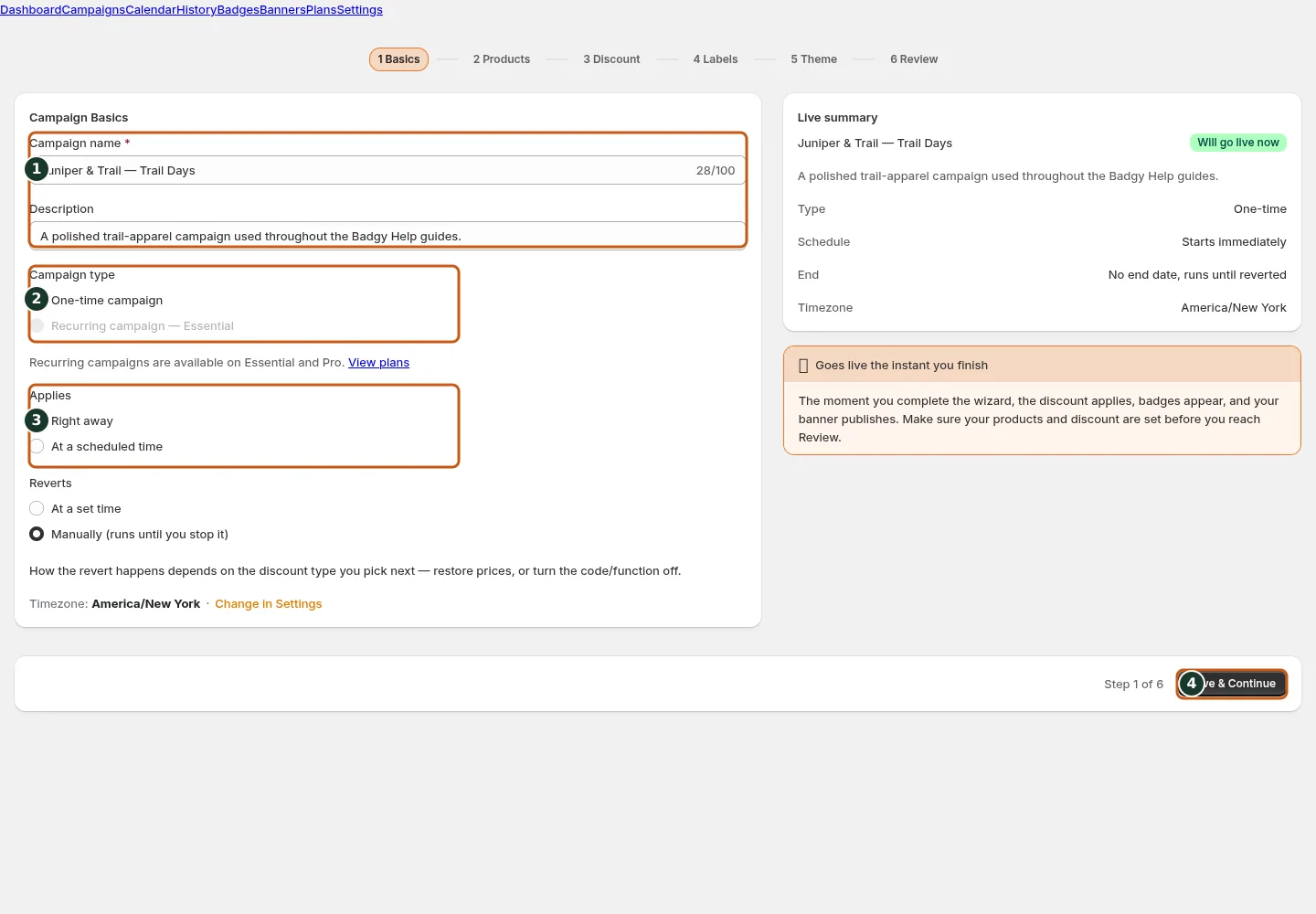
Name and describe the campaign so teammates can identify its purpose.
Choose whether the campaign runs once or repeats on a schedule.
Set when the campaign should begin.
Choose whether the campaign ends automatically or stays open.
Save the basics and continue to the next wizard step.
- Choose Recurring campaign; it requires an eligible plan.
- Select Hourly, Daily, Weekly, or Monthly and enter Every N units.
- For Weekly, choose Daily windows or one continuous Span; other tabs use daily windows.
- Set each occurrence's From and To boundaries, then choose Forever, Until, or Count.
- Read the plain-language Rule summary and inspect upcoming occurrences.
Choose a continuous span or daily windows, a frequency, an interval, and a series end rule. Every occurrence still has a definite apply and revert boundary.
Juniper & Trail example
Juniper & Trail uses plan a recurring campaign for a repeat trail-hour promotion. The team previews several future occurrences and checks that each occurrence has an apply and revert boundary. The documentation fixture uses realistic products, inventory states, variants, collections, and protected exclusions so the preview exercises the same decisions as a merchant catalog.
What shoppers will see
The promotion turns on and off for each occurrence; there is no intended midnight flicker inside a continuous span. Check the relevant result from product through cart where applicable. For shopper-facing work, compare desktop and mobile and verify both an eligible and an ineligible item.
Common mistakes and troubleshooting
- Acting on the wrong shop. Confirm the Shopify store and campaign before following Plan a recurring campaign.
- Trusting a stale preview. Refresh after catalog, schedule, discount, theme, locale, or market changes.
- Repeating a background command. Read status and History first; retry only when Badgy presents a recoverable failure.
- Skipping the consequence check. Confirm what changes for shoppers and what the end or restore path will do.
If the status reports revoked authorization, reconnect Shopify before retrying. If the result still differs from the preview, preserve the campaign ID and approximate time, then open support from this identified shop. Never send customer data, access tokens, or full catalog exports in feedback.
Related guides
Options reference
| Option | Use it when | Consequence | | --- | --- | --- | | Hourly | Repeat within a daily live window | Each run applies and reverts | | Daily | Repeat every N days | Same-day window | | Weekly | Selected-day windows or continuous span | Only frequency exposing Span | | Monthly | Selected day of month | Review future occurrence preview | | Forever / Until / Count | Set series horizon | Separate from occurrence end |
Badgy behavior in this guide is reviewed against the repository's shipped UI, service rules, and feature design documents. Shopify-owned theme, Markets, Flow, billing, and discount behavior can also depend on the store's Shopify configuration; consult the Shopify Help Center for that platform configuration.