storefront theme
Troubleshoot theme rendering
Learn how to troubleshoot theme rendering with a safe Juniper & Trail example, shopper impact, options, and recovery checks. Check embed status, active metafield context, eligible product, page targeting, locale, and theme placement in that order. Empty campaign metafields should render nothing rather than a broken placeholder.
Before you begin
- Theme-editor access
- A published theme or safe duplicate for testing
- Desktop and mobile storefront preview access
Confirm the shop, current status, and intended consequence before changing anything. Use read-only status, preview, or history evidence first.
Step-by-step setup
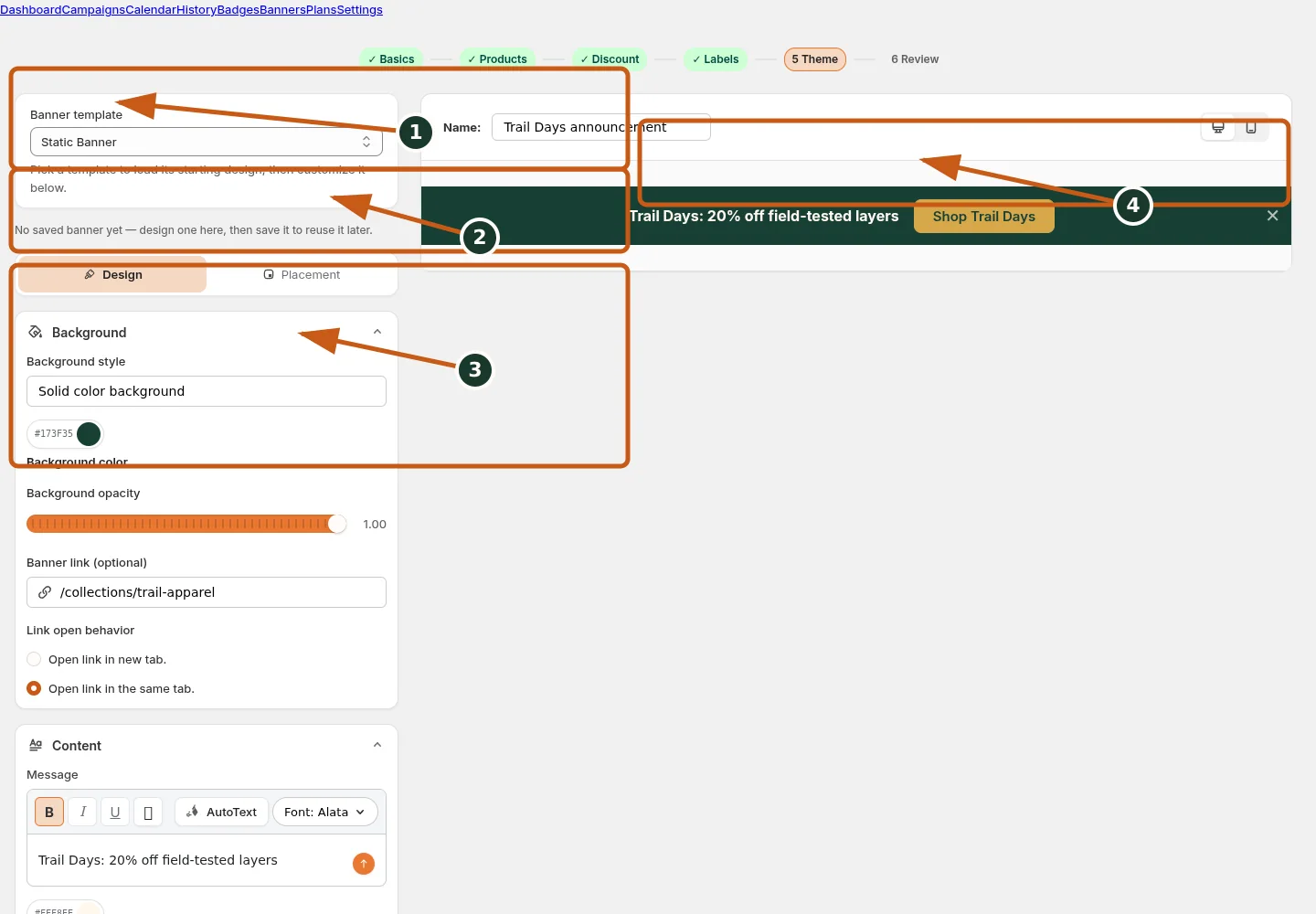
Choose the banner template and give this banner a recognizable name.
Use Design and Placement to switch between appearance and location controls.
Configure the banner background, optional image, and link behavior.
Review the live desktop banner preview before saving.
- Open campaign detail, Dashboard status, and theme preview for the intended shop and confirm the current record and status.
- Check Active status, product eligibility, app embed, block placement, metafield context, page targeting, locale, and inventory stage in that order.
- Read the inline summary, warning, or preflight before submitting; do not repeat a command while background work is running.
- Verify empty configuration renders nothing rather than a broken placeholder and test without admin cookies.
- Confirm the resulting status and History/audit evidence, then spot-check Shopify or the storefront when the action has external effects.
Check embed status, active metafield context, eligible product, page targeting, locale, and theme placement in that order. Empty campaign metafields should render nothing rather than a broken placeholder.
Juniper & Trail example
Juniper & Trail verifies troubleshoot theme rendering on its home page, collection grid, and Ridgeway jacket product page in desktop and mobile previews. The documentation fixture uses realistic products, inventory states, variants, collections, and protected exclusions so the preview exercises the same decisions as a merchant catalog.
What shoppers will see
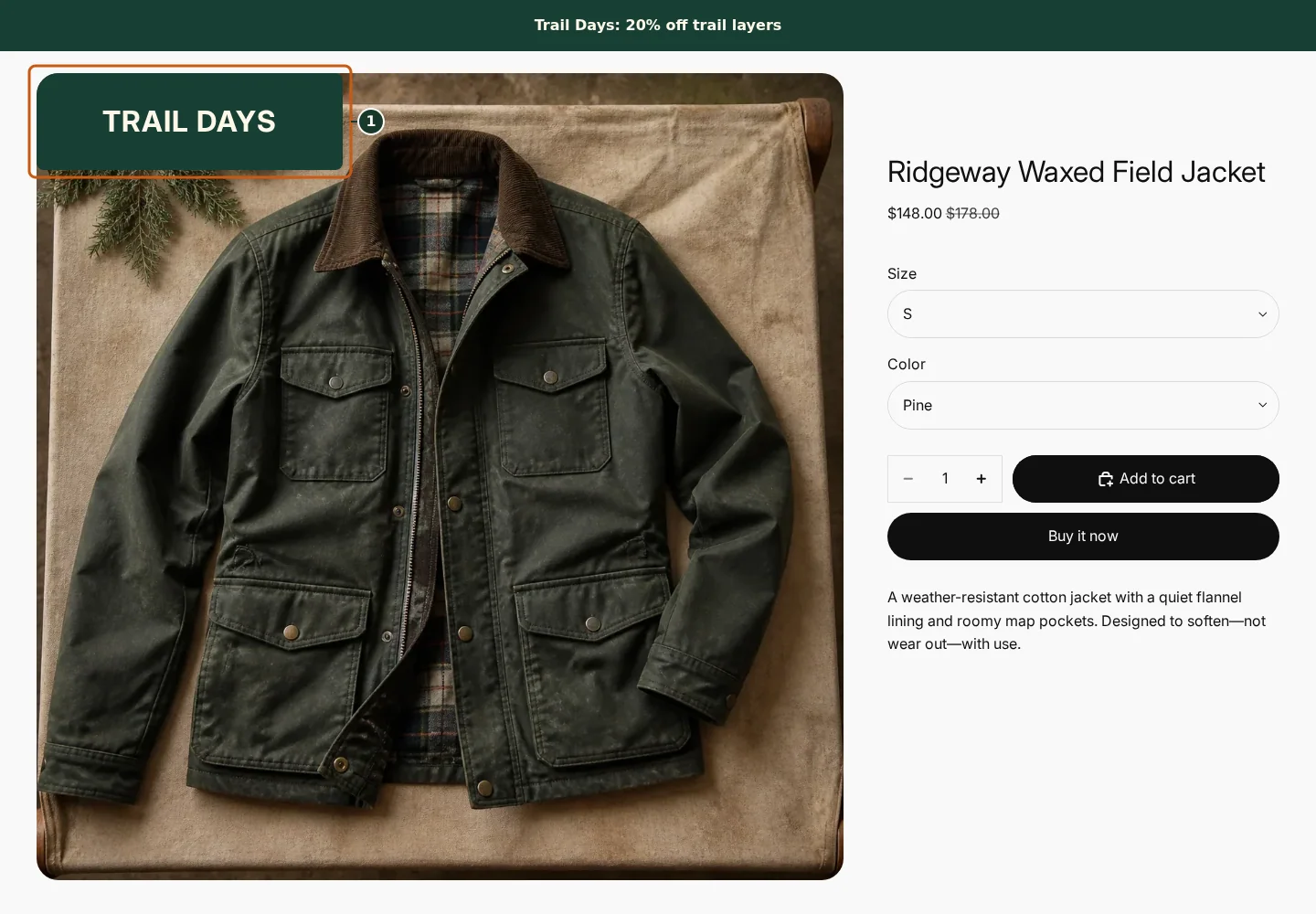
Confirm the campaign announcement and Shop call to action at the top of the store.
Check the badge and adjusted pricing on an eligible product card.
Compare another product card to verify consistent campaign treatment.
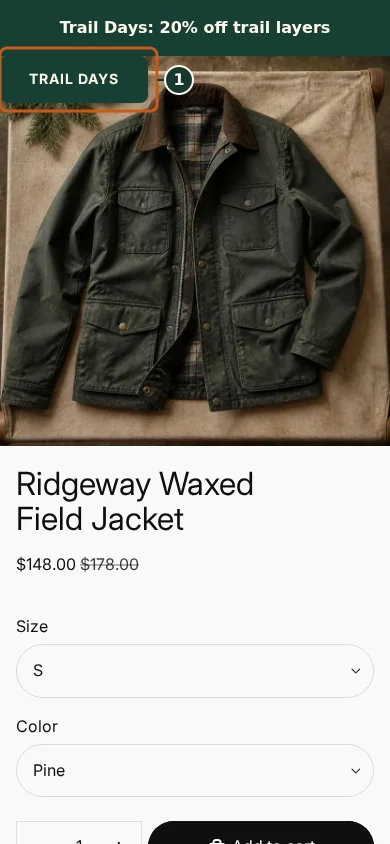
Confirm the campaign announcement and Shop call to action fit the mobile header.
Check that the badge remains readable on the mobile product card.
Scroll through additional products to verify the collection layout stays usable.
Theme extensions read Badgy campaign metafields and show nothing when eligible configuration is absent. Check the relevant result from product through cart where applicable. For shopper-facing work, compare desktop and mobile and verify both an eligible and an ineligible item.
Common mistakes and troubleshooting
- Acting on the wrong shop. Confirm the Shopify store and campaign before following Troubleshoot theme rendering.
- Trusting a stale preview. Refresh after catalog, schedule, discount, theme, locale, or market changes.
- Repeating a background command. Read status and History first; retry only when Badgy presents a recoverable failure.
- Checking only one viewport. Verify desktop and mobile in a private storefront window.
If the status reports revoked authorization, reconnect Shopify before retrying. If the result still differs from the preview, preserve the campaign ID and approximate time, then open support from this identified shop. Never send customer data, access tokens, or full catalog exports in feedback.
Related guides
Options reference
| Option | Use it when | Consequence | | --- | --- | --- | | No Badgy content | Embed/context issue | Check global foundation | | One product/page | Eligibility/targeting issue | Check exact context | | Stale result | Theme/browser cache | Private-window retest |
Badgy behavior in this guide is reviewed against the repository's shipped UI, service rules, and feature design documents. Shopify-owned theme, Markets, Flow, billing, and discount behavior can also depend on the store's Shopify configuration; consult the Shopify Help Center for that platform configuration.