support privacy
Start support chat from Help
Learn how to start support chat from Help with a safe Juniper & Trail example, shopper impact, options, and recovery checks. Merchant support chat appears only in an identified Help session opened from Badgy. The handoff attaches bounded guide context, while anonymous visitors can read and rate guides but cannot start merchant chat.
Before you begin
- Open Help from the correct identified shop for merchant support
- Do not paste customer personal data or credentials
- Note the guide and heading where the issue occurred
Confirm the shop, current status, and intended consequence before changing anything. Use read-only status, preview, or history evidence first.
Step-by-step setup
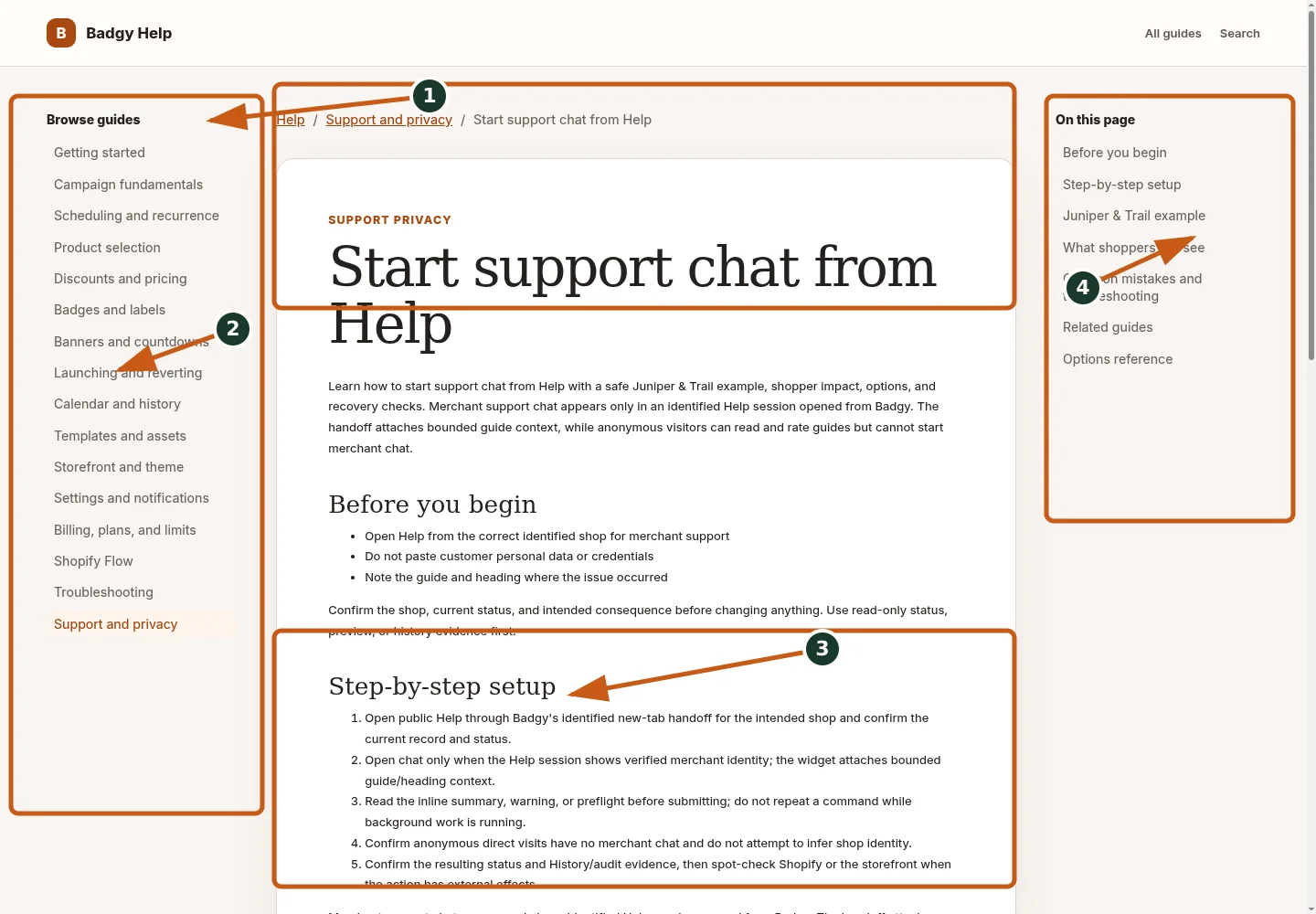
Confirm the guide title and identified-support scope before starting a chat.
Use the Help category navigation to move between related guide groups.
Follow the ordered setup steps for opening chat with bounded guide context.
Jump to a specific section with the on-page table of contents.
- Open public Help through Badgy's identified new-tab handoff for the intended shop and confirm the current record and status.
- Open chat only when the Help session shows verified merchant identity; the widget attaches bounded guide/heading context.
- Read the inline summary, warning, or preflight before submitting; do not repeat a command while background work is running.
- Confirm anonymous direct visits have no merchant chat and do not attempt to infer shop identity.
- Confirm the resulting status and History/audit evidence, then spot-check Shopify or the storefront when the action has external effects.
Merchant support chat appears only in an identified Help session opened from Badgy. The handoff attaches bounded guide context, while anonymous visitors can read and rate guides but cannot start merchant chat.
Juniper & Trail example
A Juniper & Trail admin follows Start support chat from Help from the correct shop. Support can see bounded Help context but never draft form values, catalog details, credentials, or customer data. The documentation fixture uses realistic products, inventory states, variants, collections, and protected exclusions so the preview exercises the same decisions as a merchant catalog.
What shoppers will see
Help activity never changes the storefront. It gives support bounded product context without collecting form contents or catalog data. Check the relevant result from product through cart where applicable. For shopper-facing work, compare desktop and mobile and verify both an eligible and an ineligible item.
Common mistakes and troubleshooting
- Acting on the wrong shop. Confirm the Shopify store and campaign before following Start support chat from Help.
- Trusting a stale preview. Refresh after catalog, schedule, discount, theme, locale, or market changes.
- Repeating a background command. Read status and History first; retry only when Badgy presents a recoverable failure.
- Skipping the consequence check. Confirm what changes for shoppers and what the end or restore path will do.
If the status reports revoked authorization, reconnect Shopify before retrying. If the result still differs from the preview, preserve the campaign ID and approximate time, then open support from this identified shop. Never send customer data, access tokens, or full catalog exports in feedback.
Related guides
Options reference
| Option | Use it when | Consequence | | --- | --- | --- | | Identified | Verified shop session | Merchant chat available | | Anonymous | Direct public visitor | Read/rate only | | Guide context | Current guide/heading | Bounded support handoff |
Badgy behavior in this guide is reviewed against the repository's shipped UI, service rules, and feature design documents. Shopify-owned theme, Markets, Flow, billing, and discount behavior can also depend on the store's Shopify configuration; consult the Shopify Help Center for that platform configuration.