badges labels
Upload a badge image
Learn how to upload a badge image with a safe Juniper & Trail example, shopper impact, options, and recovery checks. Uploaded badge artwork should have a transparent background, tight crop, and enough resolution for high-density displays. Badgy uses the uploaded asset; it does not repair embedded text.
Before you begin
- Enable storefront rendering and identify the product-card layouts to test
- Choose text or image artwork
- Prepare Normal, Low stock, and Sold out messaging when stages are used
Keep the campaign in Draft while you verify the configuration. Use a private storefront window where the guide changes shopper-facing behavior.
Step-by-step setup
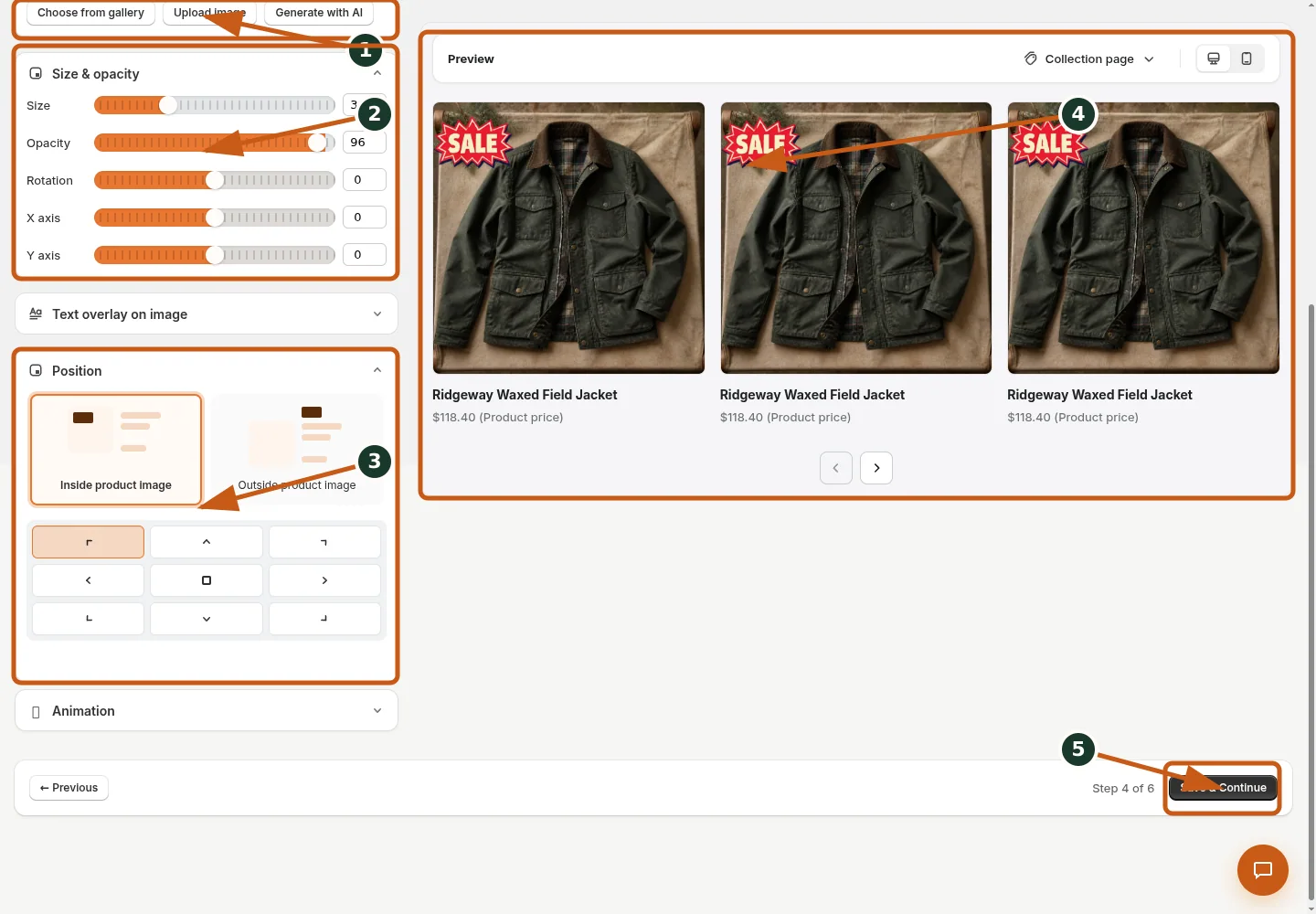
Choose the image upload source instead of the gallery or AI generator.
Adjust uploaded badge size, opacity, rotation, and image offsets.
Choose whether the badge sits inside or outside the product image and set its position.
Verify the uploaded badge on real Juniper & Trail product cards.
Save the badge configuration and continue through the campaign wizard.
- Choose Image badge and Upload.
- Select an approved, tightly cropped image with transparent background where needed.
- Wait for upload validation and choose the resulting asset.
- Adjust size, opacity, position, and X/Y offsets from -100 to 100.
- Enable text overlay only when editable wording is needed, then preview and save.
Uploaded badge artwork should have a transparent background, tight crop, and enough resolution for high-density displays. Badgy uses the uploaded asset; it does not repair embedded text.
Juniper & Trail example
Juniper & Trail applies upload a badge image to the Ridgeway Waxed Field Jacket. The team checks a bright lifestyle image, a dark pack shot, collection cards, and the product page. The documentation fixture uses realistic products, inventory states, variants, collections, and protected exclusions so the preview exercises the same decisions as a merchant catalog.
What shoppers will see
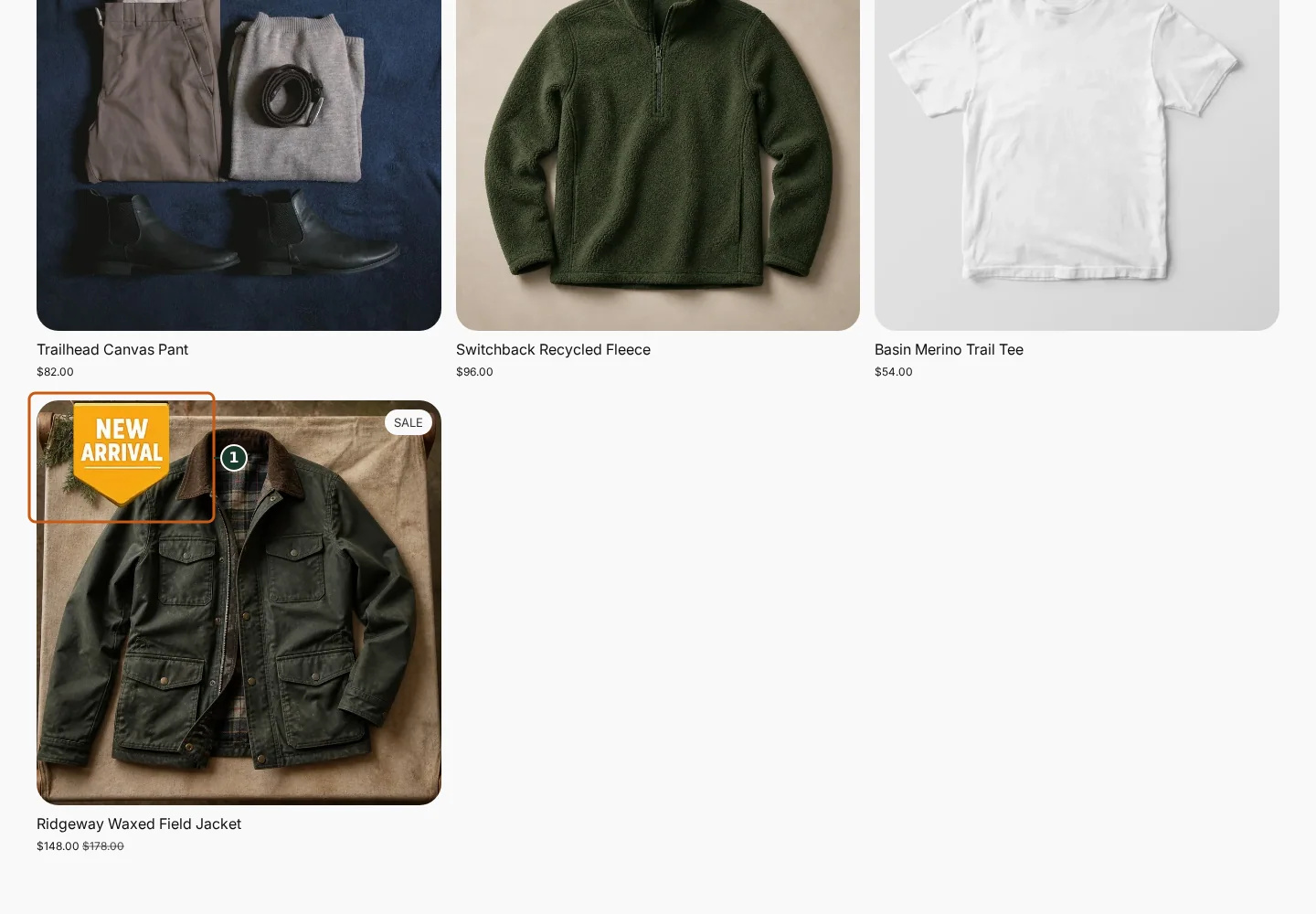
Confirm the campaign announcement and Shop call to action at the top of the store.
Check the badge and adjusted pricing on an eligible product card.
Compare another product card to verify consistent campaign treatment.
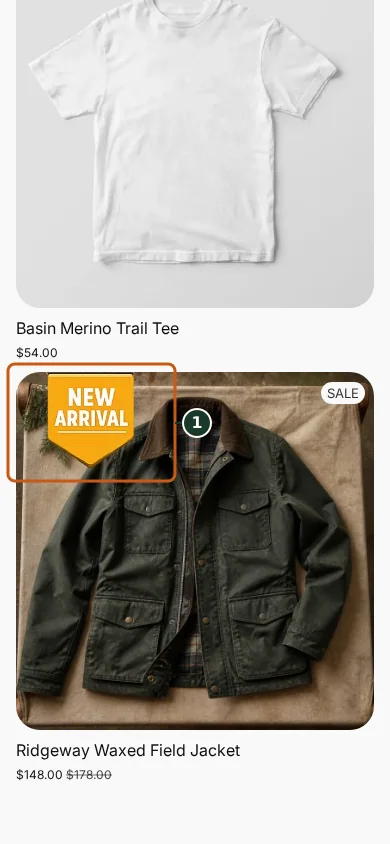
Confirm the campaign announcement and Shop call to action fit the mobile header.
Check that the badge remains readable on the mobile product card.
Scroll through additional products to verify the collection layout stays usable.
The badge overlays eligible product media. Its final size and crop depend on the theme's product-card and media containers. Check the relevant result from product through cart where applicable. For shopper-facing work, compare desktop and mobile and verify both an eligible and an ineligible item.
Common mistakes and troubleshooting
- Acting on the wrong shop. Confirm the Shopify store and campaign before following Upload a badge image.
- Trusting a stale preview. Refresh after catalog, schedule, discount, theme, locale, or market changes.
- Repeating a background command. Read status and History first; retry only when Badgy presents a recoverable failure.
- Checking only one viewport. Verify desktop and mobile in a private storefront window.
If the status reports revoked authorization, reconnect Shopify before retrying. If the result still differs from the preview, preserve the campaign ID and approximate time, then open support from this identified shop. Never send customer data, access tokens, or full catalog exports in feedback.
Related guides
- Choose an image from the badge gallery
- Generate a badge image with AI
- Place Badgy blocks in your theme
Options reference
| Option | Use it when | Consequence | | --- | --- | --- | | Transparent artwork | Overlay product photography | Avoid baked background box | | Opacity | Blend artwork | Do not reduce legibility | | X / Y offsets | Fine-tune inside anchor | Range -100 to 100 | | Text overlay | Separate exact copy from art | Supports styling |
Badgy behavior in this guide is reviewed against the repository's shipped UI, service rules, and feature design documents. Shopify-owned theme, Markets, Flow, billing, and discount behavior can also depend on the store's Shopify configuration; consult the Shopify Help Center for that platform configuration.