discounts pricing
Configure discount formulas and rounding
Learn how to configure discount formulas and rounding with a safe Juniper & Trail example, shopper impact, options, and recovery checks. Percentage and fixed-amount formulas use configured bases, operators, and rounding. Check low-priced variants so fixed reductions do not produce an invalid result.
Before you begin
- Choose the shopper behavior: visible price, code, quantity tiers, or BOGO
- Confirm eligible products and markets
- Define the intended revert outcome
Keep the campaign in Draft while you verify the configuration. Use a private storefront window where the guide changes shopper-facing behavior.
Step-by-step setup
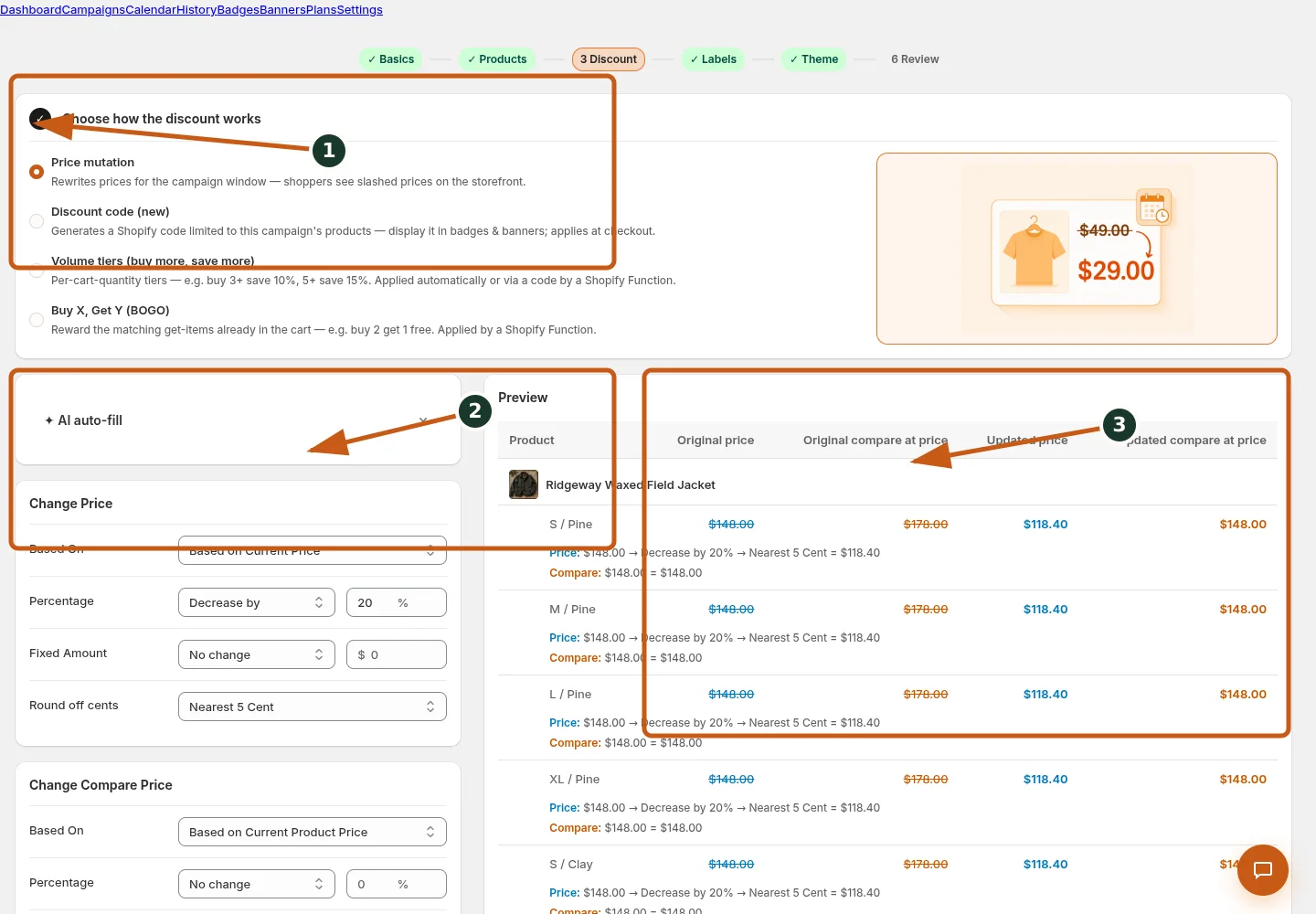
Select the discount route that matches the promotion.
Set the price base, percentage operation, amount, and rounding behavior.
Verify updated prices and compare-at prices for real Juniper & Trail variants.
- Choose Change product prices and select Formula in Price, Compare price, or Cost price.
- Build an expression only from the variables offered for that section: current_price, current_compare_price, cost_per_item, and new_price for Compare price.
- Use the formula builder/sample to verify syntax and a representative result.
- Choose rounding after the formula where offered.
- Inspect low, high, blank compare-at, and missing-cost preview rows before saving.
Percentage and fixed-amount formulas use configured bases, operators, and rounding. Check low-priced variants so fixed reductions do not produce an invalid result.
Juniper & Trail example
Juniper & Trail tests the workflow for Configure discount formulas and rounding on the Alder 18L Daypack and Roam 750 Steel Bottle. The team checks the product, cart, and restore consequences before launch. The documentation fixture uses realistic products, inventory states, variants, collections, and protected exclusions so the preview exercises the same decisions as a merchant catalog.
What shoppers will see
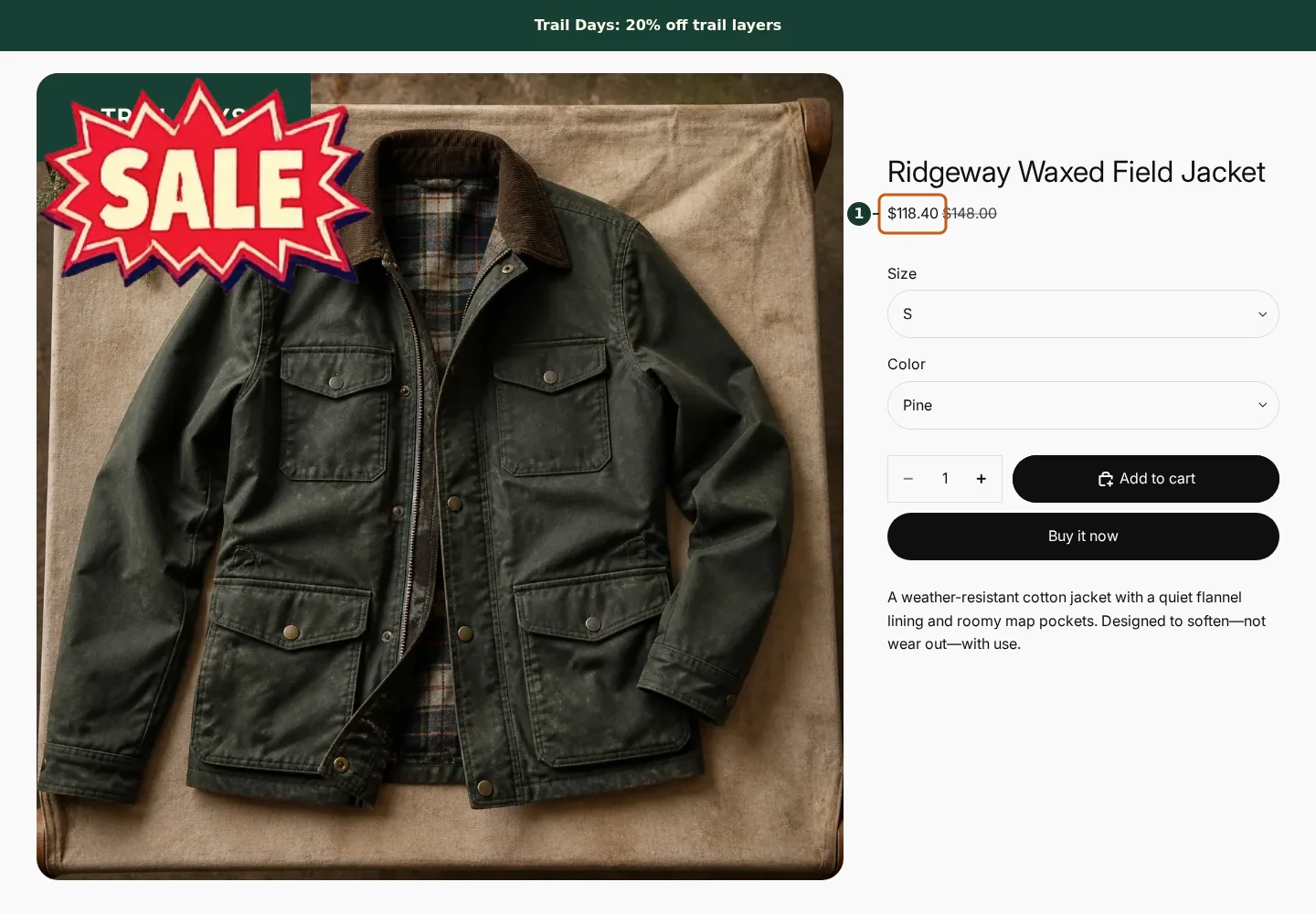
Confirm the campaign announcement and Shop call to action at the top of the store.
Check the badge and adjusted pricing on an eligible product card.
Compare another product card to verify consistent campaign treatment.
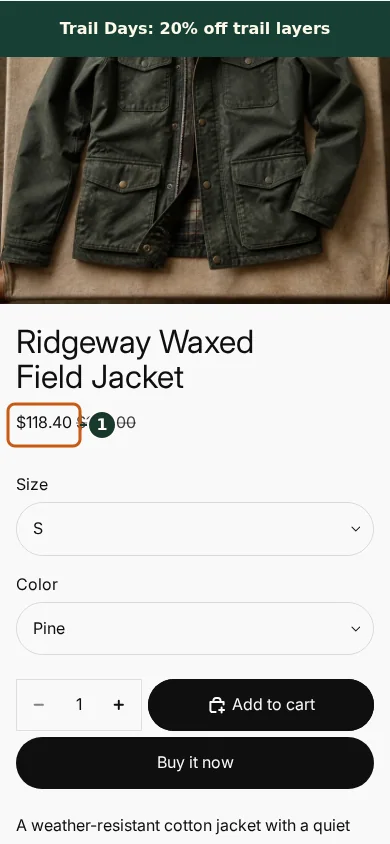
Confirm the campaign announcement and Shop call to action fit the mobile header.
Check that the badge remains readable on the mobile product card.
Scroll through additional products to verify the collection layout stays usable.
The cart outcome depends on the route: direct price changes catalog prices, while code and function-backed offers are calculated by Shopify when eligibility is met. Check the relevant result from product through cart where applicable. For shopper-facing work, compare desktop and mobile and verify both an eligible and an ineligible item.
Common mistakes and troubleshooting
- Acting on the wrong shop. Confirm the Shopify store and campaign before following Configure discount formulas and rounding.
- Trusting a stale preview. Refresh after catalog, schedule, discount, theme, locale, or market changes.
- Repeating a background command. Read status and History first; retry only when Badgy presents a recoverable failure.
- Skipping the consequence check. Confirm what changes for shoppers and what the end or restore path will do.
If the status reports revoked authorization, reconnect Shopify before retrying. If the result still differs from the preview, preserve the campaign ID and approximate time, then open support from this identified shop. Never send customer data, access tokens, or full catalog exports in feedback.
Related guides
Options reference
| Option | Use it when | Consequence | | --- | --- | --- | | current_price | Use present variant price | Available base context | | current_compare_price | Use current compare-at | May be blank | | cost_per_item | Margin-aware calculation | May be unavailable | | new_price | Set compare-at relative to computed price | Compare section only | | Rounding | Normalize formula output | Applied to result |
Badgy behavior in this guide is reviewed against the repository's shipped UI, service rules, and feature design documents. Shopify-owned theme, Markets, Flow, billing, and discount behavior can also depend on the store's Shopify configuration; consult the Shopify Help Center for that platform configuration.